Securing Grok Bot: A Hardening Guide to X’s Personal AI Assistant

Eitan Chassid

Yotam Perkal
Nov 09, 2026・
7 min read


Grok Bots are Cursor’s persistent personal AI assistants. A Bot works from a cloud computer shared with the user’s other Bots and, when allowed, reaches the employee’s own machine, connected tools and Cloud Agents.
This guide to Grok Bots security answers one question: what should a security team configure and verify before employees use them?
Grok Bots may already be in use by the time security gets a look at them. This guide is for whoever owns the team setup, whether in security, IT or the team itself. Inside Personal AI Agents explains the underlying boundaries, and Cursor’s Grok Bot security guide has the full settings list.
Cursor assigns one persistent cloud computer to each user, not to each Bot, so a user’s Bots share its files, browser sessions, command-line credentials and installed connectors. A Bot acts as the signed-in user with no credentials of its own, so nothing separates one Bot from the next. It also reads web pages, plugin results and command output as it works, and Cursor states that any of those can try to steer it. Three things start out wider than they look:
Allow Sudo on Bot Computers ships on, so Bots run as root.Cursor runs each user’s cloud computer as its own Firecracker microVM. That microVM is the real boundary, and every Bot the user creates works inside it.
Risk: with no network policy, a user’s cloud computer can reach any destination, and every Bot on the account works there as root.
Grok Bot Network Access to Team Allowlist Only (Cursor dashboard → Grok Bot → Network). The default is allow-all: with no network policy, the computer can reach any destination. Add only the domains and IP ranges your workflows need. Result: Bots reach only listed destinations, within about a minute.Allow Sudo on Bot Computers, then restart existing computers (Cursor dashboard → Grok Bot → Bot Computers). Result: Bots no longer run as root.Update Bot's Computer (Settings → Computer → Bot’s computer). Updating the desktop app does not update the cloud computer. Result: the latest software is installed and your files are left alone.Check: have a Bot open a site that is not on the allowlist, and run sudo -n true. Both should fail.
Risk: while the desktop app runs, a Bot can run commands on the user’s own machine and move files between it and the cloud computer. The default, Always allow, leaves that decision to each user.
Execution on Local Computer to Never allow (Cursor dashboard → Grok Bot). Result: no user’s machine is reachable, since the stricter value wins.Execution on Local Computer to Never allow. Settings → General → Bot. Once the account has registered computers this moves to Settings → Computer → Computers, where each computer carries its own Execution on this computer value. Result: the machine stays closed if the ceiling is raised later.Ask every time instead and read each card before allowing. The card shows the exact command, so check its target and arguments, then return to Never allow when the work is done.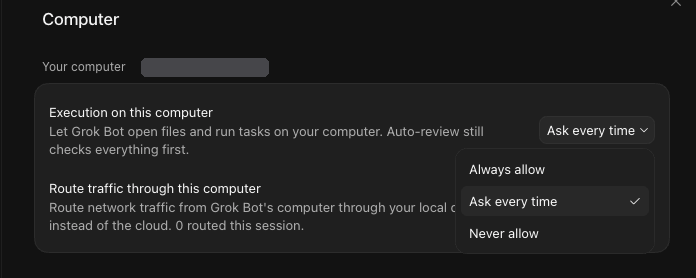
Protect the desktop app like other credential-holding software, because its session reaches the user’s Bots, cloud computer and connected tools. At offboarding, revoke the person’s Cursor access: uninstalling the app does not end the session.
Check: confirm the team ceiling and each registered computer’s value, then ask a Bot to list a folder on the user’s machine. It should be refused.
Risk: Auto-review checks each action against each user’s own rules until an admin enforces team rules. It is an independent model that can allow, ask or deny an action before it runs.
Enforce Auto-review, then add narrow Ask first rules under Configure Rules. Cover external messages, publishing, deletions, permission changes, purchases and production changes. Result: users see locked rules and can only add stricter ones.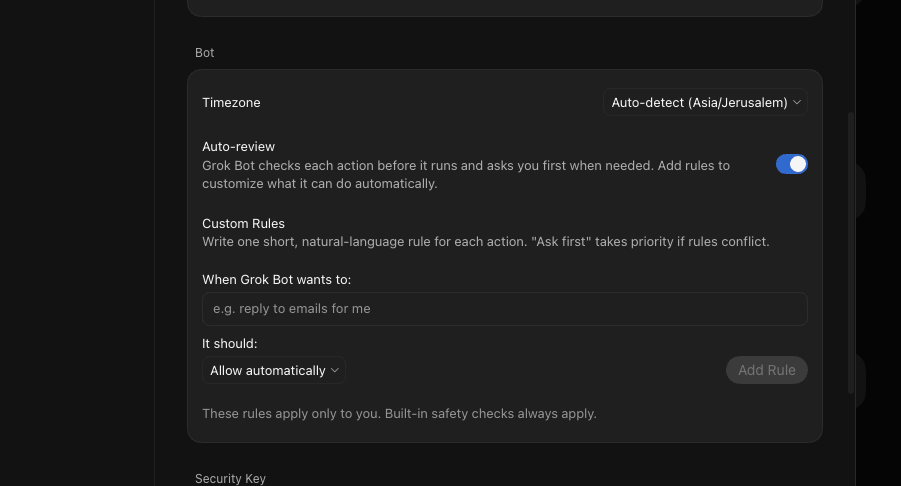
Auto-review reduces prompt-injection risk without eliminating it, and it does not cover memory writes or most settings changes, so keep the network and connector limits in place.
Check: ask a Bot to do something on your Ask first list, such as sending an external message, and confirm it stops for approval. Repeat for each group, because a group can lift team enforcement.
Risk: each Bot builds its own memory (working preferences, important facts, summaries of past work) inside one continuous conversation, and you cannot open, edit or clear it. The only levers are what goes in and replacing the Bot.
/workspace, then delete or hide the Bot. Result: nothing stays behind. Deleting the Bot alone leaves the computer’s files and sign-ins.Check: after cleanup, ask another Bot on the same account to list /workspace and open a site the old Bot was signed in to. Neither should show the old work.
Risk: a connector keeps the access it was given at setup, is available to every Bot on the account, and holds that access until someone revokes it, so a small request can reach far more than it needs.
Cloud Agents unless Bots need to delegate coding work (Cursor dashboard → Grok Bot). It is on by default. Result: no handoff to coding agents. If you keep it on, delegated work runs under your Cloud Agent controls, so review those too.Personal connectors act as the signed-in user; team-managed ones may carry team or service-account credentials, so review what those can reach.
Check: as a user, try to enable an MCP server that is not on the reviewed list. It should show as Disabled by team admin.
Risk: Cursor keeps two records, and only one shows what a Bot did. The audit log tracks account and configuration changes, such as Bot creation. Action Recording captures the Bot’s actions, which never appear on the Audit Log page. Turning on the first gives you none of the second.
Check: run one task in a Bot, such as opening a page and running a command, then find it in your exported events. Every action in the conversation should have a matching event; any that does not marks where your visibility stops.
Cursor separates users, not Bots. Bound each user’s cloud computer, decide on local access, make consequential actions stop, and limit what connectors can reach. Then turn on the record of what a Bot actually did.
This analysis is part of Pluto Security’s ongoing research into the security of the AI ecosystem. Pluto provides workspace security platforms engineered for the AI era, giving enterprise security teams real-time visibility and governance over agents, extensions, tools, and autonomous workloads. To learn how to secure AI assistants in your environment, contact us at pluto.security.