ChatGPT Dots Security: A Practical Hardening Guide
A practical security hardening guide to ChatGPT dots. Learn which controls apply to cloud and local access, where Custom rules fall short of enforcement, and how to validate memory, delegation, and audit coverage before rollout.
ChatGPT Dots are OpenAI’s always-on personal AI assistants. A dot can keep working between conversations, use its own cloud computer, and, when authorized, use an employee’s computer or delegate coding work to Codex Cloud. For security and IT teams, the challenge is knowing which controls apply at each step.
This guide answers one question: what should a security team configure and verify before employees use ChatGPT Dots? It maps the settings to the risks they address, explains where instructions fall short of enforcement, and gives you a practical checklist for enabling approved workflows and validating access and audit coverage before rollout. For the broader security boundaries, see Inside Personal AI Agents.
TL;DR
Start with access. Disable unnecessary cloud capabilities, review password-manager permission separately, and enable local computer access only for approved workflows.
Enforce boundaries in the right place. Shell-command rules, app permissions and managed execution limits have different scopes. Custom rules are instructions a dot can get wrong.
Check what persists and travels. Review saved context, browser sessions and, if delegation is enabled, the access available to delegated tasks. Disconnecting a source does not erase what the dot already retained.
Test before expanding access. Confirm one allowed workflow and one blocked action, compare the activity with exported logs, and verify how to revoke access.
Threat context and control map
A dot works on its own cloud computer, can be given access to an employee’s computer, and can hand work to Codex Cloud or connected apps. It acts without being asked and keeps its own notes. Each handoff can add repositories, credentials and network access the original request never needed.
Local access permission, Local Requirements, MDM, member authorization. Admin and member.
Codex Cloud and apps
IF ENABLED
Codex roles, environment settings, plugin permissions. Admin and environment owner.
Approvals, memory and logging apply wherever the dot works.
1. What can it access?
The dot’s cloud computer
Baseline. A dot browses, reaches the network and can stay signed in to websites from its own OpenAI-hosted cloud computer, so every unused capability or session is something an injected instruction can use.
Admin: turn off the cloud capabilities a role does not need. Workspace settings → Permissions & roles → Permissions → Workspace default → Workspace capabilities → Cloud computer capabilities. Switch off Cloud browser use, Cloud network access or Cloud computer use, then repeat for custom roles. Result: dots in that role cannot browse, reach the network or operate the computer.
Admin: review Use password manager separately. Same screen. Result: it is set on purpose, since switching off the capabilities above does not switch it off.
Member: sign the cloud browser out of accounts the dot no longer needs. A website session can persist even when no password was saved, so avoid signing a dot into broad administrative accounts. Result: no standing sessions for a bad instruction to reuse.
An employee’s computer
Baseline: keep it off. If enabled: restrict it. The desktop app can let a dot use files and tools on an employee’s computer, which gives an injected instruction a path to local data.
Admin: leave Allow local computer access off unless an approved workflow needs it. Workspace settings → Permissions & roles → Use Dots. Result: dots in that role cannot reach local files or tools.
Admin, if enabled: set limits before rollout. Admin Console → Agent Security → your policy → Local → Requirements. Allow read-only file access unless the dot must write, and deny credential paths. Allow only the network domains the workflow needs. Set browser-origin and native-app policies to deny, then allow only required sites and apps. On macOS, stricter MDM requirements take precedence. Result: members cannot relax these limits.
Member: authorize one computer and revoke it when the work ends. ChatGPT desktop → dot details → Computers. Keep the app at version 26.929 or later and deprovision members at offboarding. Result: local access ends with the work.
Check: on the managed desktop build you deploy, run one action that should work and one that should be blocked. Even with local access off, the desktop app stays signed in to the member’s ChatGPT account, so protect the endpoints that run it as you would any app holding a live session. See OpenAI’s local computer access guide for setup.
2. What can it do?
Baseline. A website, email or document can carry instructions meant to trick a dot into acting. OpenAI’s protections reduce this risk without eliminating it, so decide which actions are blocked outright and which a person must perform.
Admin: add forbidden prefix rules for shell commands that must never run. Admin Console → Agent Security → your policy → Global → Requirements. Result: a matching command is blocked before execution, with no approval button.
Member: set high-impact actions to “Hand off to you.” Settings → Personalization → Custom rules. Use it for payments, credential changes, production changes and outbound messages. Result: the dot should ask the member to perform the action.
Admin: choose who reviews approvals. Same Global Requirements policy, using allowed_approvals_reviewers. Result: approval requests go to the member, the automatic reviewer or both, as you decide.
Limitation: only forbidden rules enforce, and only for shell commands. They do not cover browser clicks, connected-app actions or MCP tool calls. Custom rules are guidance a dot tries to follow, not a boundary. Approval detail can vary by path and client version, so test the dialogs you deploy. For rule syntax and automatic-review setup, see OpenAI’s managed configuration guide.
3. What persists or carries into other work?
Memory
Baseline. A dot keeps its own notes across conversations, separate from ChatGPT saved memory, and can exchange context with ChatGPT memory in the same account. You cannot inspect, edit or delete individual notes, and disconnecting a source or disabling shared memory does not erase what the dot already retained. Reset is the only documented way to clear it. See OpenAI’s tasks and memory guide.
Admin: disable Use shared memory for roles that do not need prior ChatGPT context. Workspace settings → Permissions & roles → select the role. Set the nested Use improved memory permission separately. Result: dots in that role stop drawing on shared ChatGPT memory.
Member: disconnect sources the dot no longer needs. A dot can form memories from connected apps without a specific request. Result: no new context from that source.
Member: reset the dot when its context is stale. Dot profile → ••• → Reset. Reset deletes the dot with its conversations and memories, so save required results first. Result: a dot with no retained context.
Delegation and apps
If enabled. When a dot hands work to Codex Cloud or a connected app, the receiving environment may hold repositories, credentials and network access the original request never needed.
Admin: give Use Codex in the cloud and Manage workspace environments to different groups. Workspace settings → Permissions & roles. Result: people who can delegate work cannot also change what future tasks inherit.
Environment owner: limit repositories and reach. Settings → Codex Cloud → Environments → select the environment → Edit. Include only required repositories, keep Who can use on Only me unless sharing is needed, prefer Custom domains only, and give secrets, VPN and OIDC identities the minimum scope. Result: a delegated task gets only what the workflow needs.
Admin: scope each plugin by role and action. Admin Console → your workspace → Plugins → select the plugin and app. Limit Role access, enable only required Actions, set New actions to Disable new actions, and restrict the connected account in the provider. Result: unused and future app capabilities stay off.
Check: run one permitted and one denied operation before you share an environment. Sharing gives other tasks the environment’s own repositories, secrets and identities, though not another member’s personal credentials. See OpenAI’s cloud environments guide.
4. How do we verify control?
Baseline. The record splits between cloud and desktop, and OpenAI states that neither source captures every local command, file operation, screenshot, approval or external action.
Compliance API. The append-only audit stream for cloud activity, built to feed a SIEM. Local computer access appears under conversation_message and codex_log. Confirm coverage and retention in the Admin API reference.
Local OpenTelemetry. Events from the employee’s computer, which you collect yourself. The exporter is off by default, and optional prompt and response logging can export sensitive text.
Activity View. The member’s view of a dot’s tasks and steps, for steering rather than audit.
Admin test: run one representative task, then compare its exported events with what actually happened. Result: you find coverage gaps before an investigation does.
Before you roll out
ChatGPT Dots gives administrators real controls, but they are spread across roles, Agent Security, member settings and Codex environments. Attach each control to where the work runs, then test the combined result, because the logs will not show everything.
Pluto Security gives enterprise security teams real-time visibility and governance over AI agents, extensions and autonomous workloads. To secure AI assistants in your environment, contact us at pluto.security.
Inside Personal AI Assistants: What to Check in Grok Bot, ChatGPT dots, and Meta Muse
Personal AI assistants keep working without continuous supervision, remember what they are told, and run on a computer your team never provisioned. Pluto Research maps…
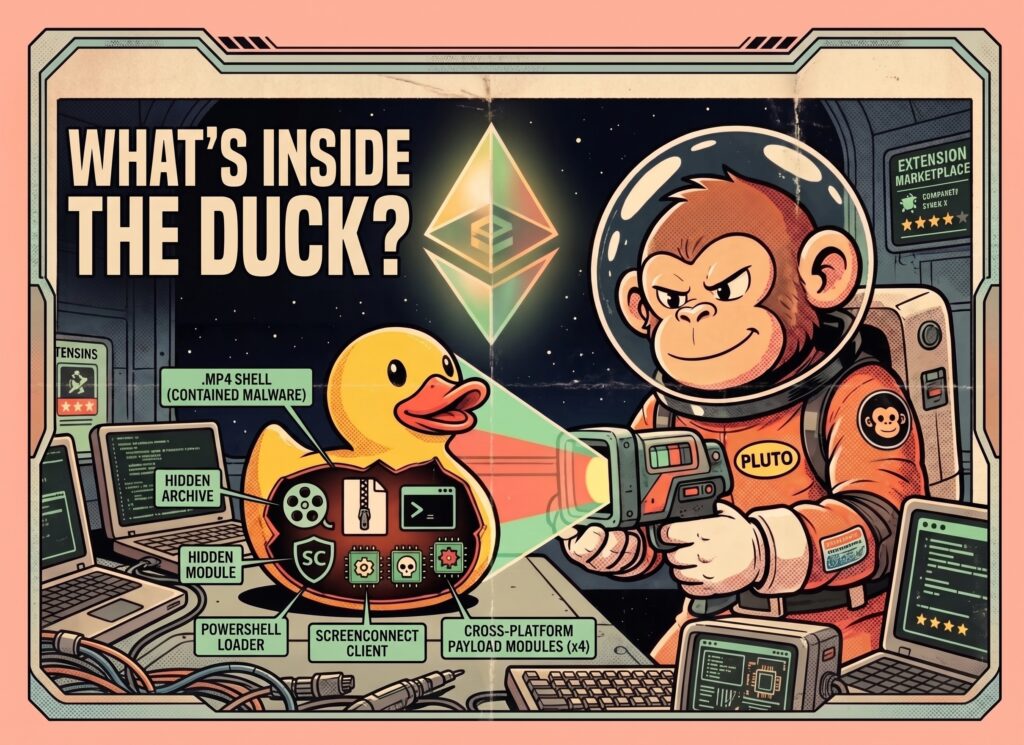
SleepyDuck Wakes Again: A Cross-Platform Open VSX Campaign Targeting Solidity Developer Workstations
Pluto Research traced EtherDuck, the latest evolution of SleepyDuck, through fake Solidity extensions, inflated download counts, and malware hidden inside a video file. The campaign…