It’s 9 p.m. The office is empty, and most of your team logged off hours ago. But somewhere, an employee’s Meta Muse is still at work: sorting their inbox, replying to a message, opening a file on their Mac, checking something on your private network. It’s doing exactly what it was set up to do. The problem is that you have no idea what that is, because every setting that decides it lives in a personal account you can’t see.
That’s exactly why we created this Practical Guide to Securing Meta Muse. It shows you how to help your employees limit what Muse can reach, decide which actions should always ask first, and check what it remembers, so you can set your own house rules. No spilled data, no surprises after hours.
Who this is for
Muse’s security settings live with each person who uses it, so every step below is the account owner’s to take. If that’s you, use this guide to decide what to connect and which actions should ask first. If employees use Muse alongside company data, it also shows security teams where their control ends: there is no admin console for these personal settings. An employer can still apply device and network policy and guide what staff connect. Inside Personal AI Agents explores the design behind those limits.
The threat model
A single Muse account can reach bank transactions, medical records, direct messages, a paired Mac and a private network, and it runs scheduled tasks and reminders while you are away. Meta limits each connector to the data a task needs, keeps saved passwords out of the model’s reach, and requires approval for every purchase and send. How many services, actions and protocols Muse can use is set in your account. Training on your interactions is on by default.
Who secures what
Meta scopes the agent’s tools. The breadth of access comes from the services and permissions set in a personal account.
Meta secures
Scoped connectors
Built-in connectors expose their documented operations.
Separate browser session
Muse does not inherit cookies from your browser, phone or connector OAuth session.
Credential custody
The agent uses surrogate tokens. Real credentials are inserted outside its runtime.
Sensitive writes
Purchases and sends ask every time. Meta states they cannot be set to Always allow, in Settings or a saved permission.
Per-app file controls
The pane covers listed apps. Other on-disk app data may remain reachable.
Gaps to compensate for
Deleting data may leave learned context. A full Reset clears the main chat.
You configure
Connectors and scopes
Choose which services are connected and which grants they receive.
Action permissions
Set Allow, Ask or Deny for individual read and write actions.
Browser methods
Control visits, form posts, downloads, uploads and credential fill.
Direct protocols
Gate SSH, email, databases, FTP and raw TCP or UDP by destination.
Paired Mac
Review Full Disk Access, per-app modes and blocked folders.
Memory and data
Edit memory files, use forget, choose training opt-out or Reset.
Scheduled work
Review saved approvals, tasks and artifacts regularly.
Meta enforces platform permissions. The account owner decides which connections, local data and standing approvals Muse receives.
1. Restrict the agent’s browser, network access and saved logins
Muse works from a cloud virtual machine that Meta runs, backs up and patches, isolated per user, with its own cookies and sign-ins. You cannot change what is installed on it, only what it can reach.
Risk: downloads land on the agent’s computer and stay, and its browser can sign in by itself wherever that is permitted. Meta’s privacy and security guide describes this hosted environment.
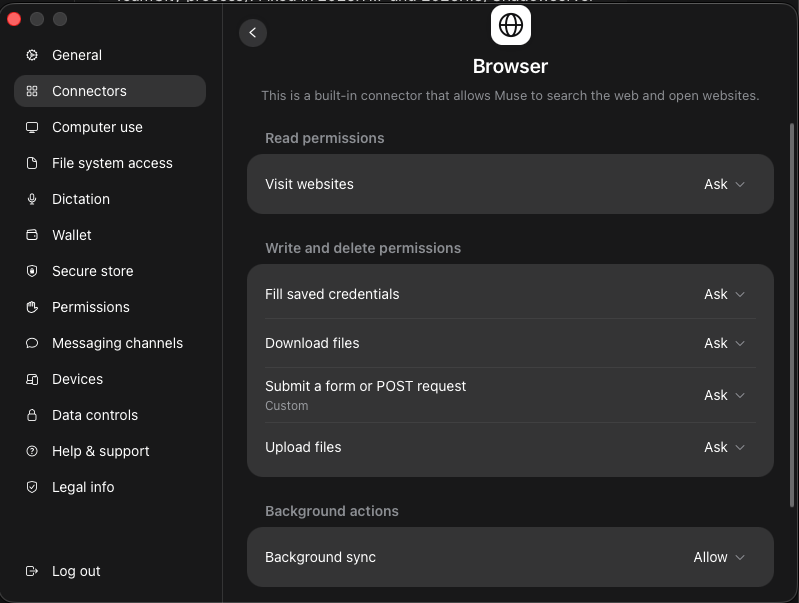
Set the browser’s write actions to Ask or Deny (Settings → Connectors → Browser). Put Download files and Submit a form or POST request on Ask, set Upload files to Deny, and never leave Fill saved credentials on Allow. Result: signing in, posting data and moving files each wait for you.
Review saved grants regularly and revoke the ones you no longer use (Settings → Permissions → Manage permissions). Grants under Featured apps, Files and Folders and Connectors stay in force until you change them. Result: only grants you still use keep applying.
Set every direct protocol to Deny. SSH, email, databases, FTP and raw TCP or UDP are each gated per destination. Move one to Ask only when a specific task needs it. Meta enforces this on the host side, so it does not rely on the agent cooperating. Result: Muse can browse but cannot open other network connections.
Trim your saved logins, and set them to ask first rather than auto-use (Settings → Secure store). Once signed in with a saved credential, Muse acts as you on that site. Result: fewer sites where Muse can act as you without asking.
Click the screenshot to enlarge. Step 1 in place: the browser’s one read sits apart from its four writes, and Fill saved credentials is a write like any other.
2. Decide how much of your Mac it can see
If you paired a Mac. The Mac app splits local access across several panes, so there is no one switch that covers all of it.
Risk: File system access, through Mail, Messages and Notes, decides whether the agent sees most of what a person keeps for work, and it is configured on a personal account with no review.
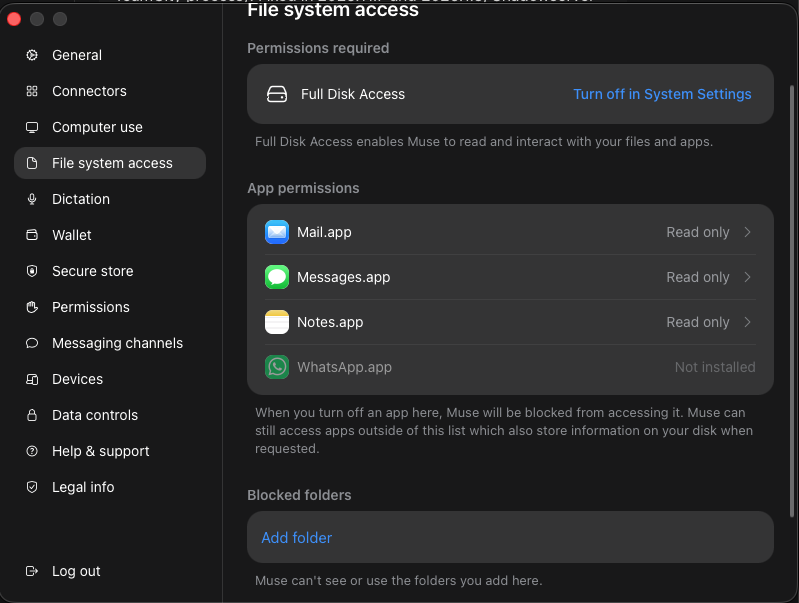
Set Mail, Messages and Notes to Off, and raise one only when a workflow needs it (Mac app settings → File system access). Result: those apps are readable only while a job needs them.
Add your sensitive folders to the blocked list (Mac app settings → Blocked folders): key material, credential exports, financial records, legal documents. Result: those folders stay out of reach even when an app is set to Read and interact.
Narrow what the Mac advertises. Withhold device permissions no workflow uses, starting with message stores, photo-library synchronization and capture. Result: unused capabilities are never declared to Muse.
Turn off Run on startup (Mac app settings). Result: pairing becomes something you choose when you need it rather than a permanent condition of using the Mac.
Click the screenshot to enlarge. Steps 1 and 2 in one pane: each app carries its own mode, and blocked folders stay out of reach regardless.
3. Decide what requires approval
Websites, emails, files and connected services can carry instructions meant to manipulate an agent. Meta’s permission checks run outside the model, in a separate host-side service called Sentinel, and purchases and sends always ask. Meta’s guidance and approval guide explains the defaults and prompts.
Risk: anything left on Allow runs without asking you.
Set Connector defaults and Web access defaults to Always ask (Settings → Permissions). Always ask covers every connector action and every website, while Ask for some actions covers only writes, important reads and unfamiliar sites. Result: anything you have not configured by hand waits for approval.
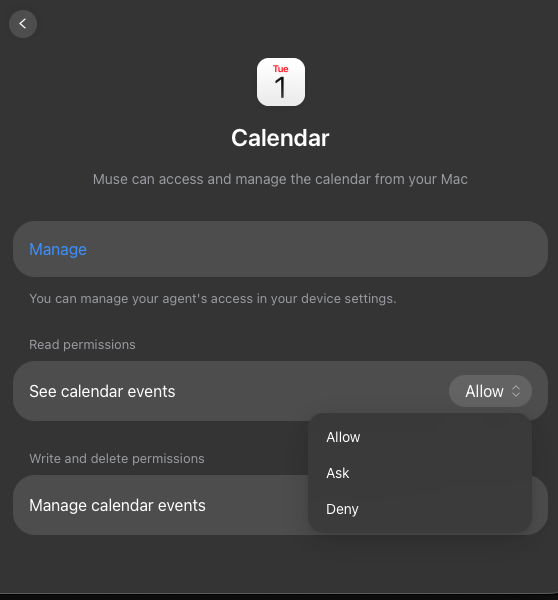
On each connector’s page, set the actions under Write and delete permissions to Ask, especially those that reach other people, such as sending mail or messages and publishing posts. Result: those actions wait for your approval.
On approval cards, choose Allow once or Allow for this task. Avoid Allow for this site and Always allow, which keep applying to future tasks. Result: no approval outlives the work it was given for.
Prune scheduled tasks and artifact approvals in Manage permissions. A recurring task runs until you cancel it. Result: nothing keeps running on an approval you forgot.
Click the screenshot to enlarge. Step 2 in place: every connector carries its own page with reads and writes in separate sections. Setting a write to Ask here is what makes the action stop for you rather than complete quietly.
4. Choose what it remembers
Risk: Muse stores your interactions, connector results, goals, artifacts and files. Meta’s memory guide states that deleting an item does not guarantee Muse forgets what it learned from it.
Read your own memory file first. Tap the Assistant icon, then Identity, then Memory, and you can edit or delete entries in MEMORY.md directly. The same path holds Soul, which carries your agent’s boundaries. Result: you see what is actually stored rather than asking the agent to tell you.
Turn off model training, which is on by default. Go to Settings, tap Data controls, toggle off Help improve our AI models, then select Turn off to confirm. Result: the change also applies to your previous interactions.
Put sensitive one-offs in a side chat. Side chat threads can be deleted from the Chats tab through the three-dot menu. The main chat cannot be deleted without resetting the whole agent. Result: sensitive threads can be deleted on their own.
Ask Muse to forget a topic, then check MEMORY.md yourself.Result: you confirm the removal rather than assume it.
After disconnecting a connector, send a forget request and reread the memory file. Meta’s Connectors guide notes that data a connector supplied may remain in Muse’s memories and your conversation history after you disconnect. Result: what the connector handed over is removed as far as forget reaches.
5. Keep the connector catalog tailored to the work
Risk: the connector list decides what Muse can touch, and the catalog reaches bank transactions through Plaid, medical records through Function Health and HealthEx, direct messages on Messenger, Instagram and Threads, your car, your home, flight booking and payment, and a private network through Tailscale. Meta publishes no public directory, so the only complete list is the one in your own settings.
Disconnect every connector no current workflow needs (Settings → Connectors). Result: only the services you use can be reached.
Check what is already connected before you connect anything. Facebook, Instagram and Threads are linked automatically when those accounts share an Accounts Center. Manage them through Accounts Center. Result: no connector reaching your social presence or direct messages is live without your choosing it.
Limit the grant at the consent screen, not afterwards. A connector can only run the commands its current scopes allow. Meta’s connector guidelines tell developers to offer a read-only option wherever the service supports it, so look for it and take it. Result: where that option exists, the connector cannot write.
Connect the far-reaching ones for the task, not the year. Plaid, Function Health, HealthEx, Withings and a Tailscale tunnel into a private network all belong in this group. Connect for the answer you need, then disconnect. Result: no standing grant into your money, health records or private network.
Keep a list of your custom connectors and review it like a service-account inventory. Muse can build one against any API. Meta does not review custom connectors, or how they use your information, and it tells you to grant access with caution. Result: every stored credential, as durable as a service account, has a purpose you can name.
What you can see afterwards
Muse gives the account owner an Activity log of its work and the permissions they granted. It opens from your assistant icon, and Upcoming, in the same place, lists the scheduled tasks and reminders still queued. Keep reviewing both: the log is the only way to catch a standing grant you approved in the moment and forgot.
There is no organizational view of it. The log belongs to the account that owns the agent, so an employer whose staff run Muse beside company data gets no product surface reporting what anyone has connected or approved.
Bottom line
Muse is one more AI agent with deep reach into its owner’s accounts and devices. Its guardrails are real, but they only help once you set them, so set them before you hand it real work.
One more agent becomes many fast. Pluto helps security teams see every AI agent and tool in their workspace, so each new one is a YES, not a blind spot.
Curious how many agents are already in your workspace? Book a demo
This analysis is part of Pluto Security’s ongoing research into the security of the AI ecosystem. Pluto provides workspace security platforms engineered for the AI era, giving enterprise security teams real-time visibility and governance over agents, extensions, tools, and autonomous workloads. To learn how to secure AI assistants in your environment, contact us at pluto.security.
Why AI Incident Response Is Different When an AI Agent Is Compromised
Traditional incident response was built on well-understood security principles: users, endpoints, servers, applications, credentials, and network connections. AI agents introduce another category of principal: non-human…
NIST AI RMF: What It Actually Means for Enterprise Security Teams
Artificial intelligence (AI) risk management is rapidly becoming an enterprise security discipline. Yet many security teams still approach these systems using conventional application-security and third-party-risk…